How Can We Help?
-
Screens and Divisions
- Arranging and Resizing
- Arranging and Resizing
- Creating a new screen
- Creating a new screen
- Creating a Screen Division
- Creating a Screen Division
- Deleting a Screen
- Deleting a Screen
- Deleting an Item
- Deleting an Item
- Duplicating a Screen
- Duplicating a Screen
- Positioning Screen Division
- Positioning Screen Division
- Screen and Campaigns
- Screen and Campaigns
- Screen Resolution
- Screen Resolution
- The Order of Divisions
- The Order of Divisions
- Show Remaining Articles (5) Collapse Articles
-
Scenes
- Common Tab
- Common Tab
- Deleting an Item
- Deleting an Item
- Main Viewing Area
- Main Viewing Area
- Renaming a Scene
- Renaming a Scene
- Scene Properties
- Scene Properties
- Scene Tab
- Scene Tab
- The Scene Editor
- The Scene Editor
- Tool Box
- Tool Box
- Show Remaining Articles (1) Collapse Articles
-
Media Adnet
-
Files and Resources
-
Campaigns
-
- Adding new Timeline to Campaign
- Adding new Timeline to Campaign
- Common Channels
- Common Channels
- Deleting a Timeline
- Deleting a Timeline
- Local Channels
- Local Channels
- The Timeline Channels
- The Timeline Channels
- The Timeline Section
- The Timeline Section
- Timeline
- Timeline
- Timeline Area of the Output
- Timeline Area of the Output
- Timeline Panel
- Timeline Panel
- Show Remaining Articles (3) Collapse Articles
- Building a Campaign
- Building a Campaign
- Campaign - User Interface
- Campaign - User Interface
- Campaign Scheduler
- Campaign Scheduler
- Campaigns - Timeline and Channel
- Campaigns - Timeline and Channel
- Campaigns and Station
- Campaigns and Station
- Campaigns and Timelines
- Campaigns and Timelines
- Campaigns Panel
- Campaigns Panel
- Common Channels
- Common Channels
- Deleting a Campaign
- Deleting a Campaign
- Deleting a Timeline
- Deleting a Timeline
- Duplicating a Campaign
- Duplicating a Campaign
- Intro to Campaign
- Intro to Campaign
- Kiosk Mode
- Kiosk Mode
- Local Channels
- Local Channels
- Properties Panel
- Properties Panel
- Properties Panel of Campaign
- Properties Panel of Campaign
- The Outputs Area
- The Outputs Area
- The Timeline Channels
- The Timeline Channels
- The Toolbox
- The Toolbox
- Timeline
- Timeline
- Timeline Area of the Output
- Timeline Area of the Output
- Timeline Panel
- Timeline Panel
- Timelines Panel
- Timelines Panel
- Show Remaining Articles (31) Collapse Articles
-
-
Others
Packages similar to Campaigns are used to setup visuals to be show on devices. In order to create a new Package, go to the Network tab in the AdNet category in the left navigation bar, there will be a window labeled Package editor, click on the ‘+’ button to add a new package.

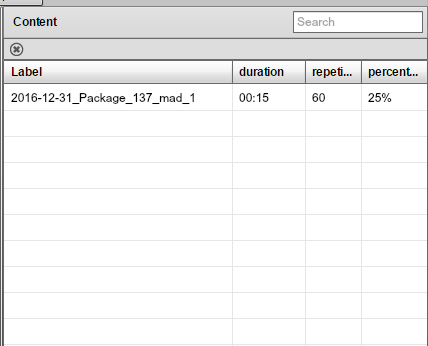
After adding a package, resources can be dragged into the content window. In the properties windows the name, the start date and the end date for the package can be adjusted. If the resources inside the content is clicked, the properties window will be available for changing of the duration and repetition for the resource.
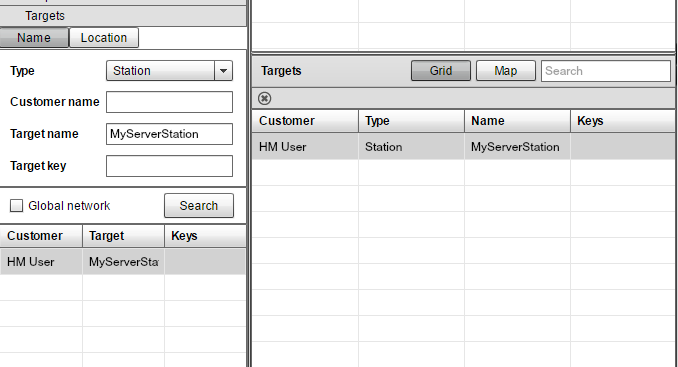
After all the resources are selected, the targets of the standee must be selected. Click on the target bar near the bottom of the screen, and click search. Name and target key can be included to search for specific targets. After targets are found, drag and drop the targets to the target window.
Save and Upload and the content will show on the targeted screen.